Sync keeps a record of activity and errors in log files, which our support team may request to help diagnose issues. You can send these logs to Sync automatically or manually, depending on your operating system.
This article covers the following:
- How to send log files from the Sync desktop app
- How to send log files from the web panel
- How to send log files from the Sync mobile app
How to send log files from the Sync desktop app
How to automatically send log files to Sync on Windows
- In the bottom-right corner of your screen, click the Sync icon in your System Tray.
- Click the ⚙︎ (settings cog).
- Select Preferences, then select the Options tab.
- Click "send now" next to "Report Errors to Server"
How to manually locate and send log files to Sync on Windows
- Click the start menu

- In the search box type in %localappdata%

- It should open the Local AppData folder
- Go into the Sync.Logs folder
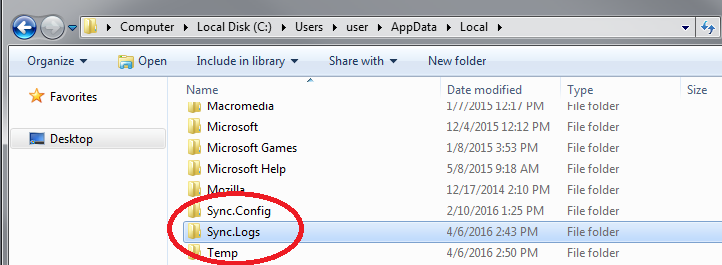
- Locate the sync-taskbar.log text file and sync-worker.log text file. Please send these both to us.

How to automatically send log files to Sync on macOS
- Click the Sync icon in the menu bar.
- Click on the Settings (⚙︎) icon.
- Click Preferences.
- Click the Options tab
- Click “send now” next to the “Report Errors to Server” option.
How to manually locate and send log files to Sync on macOS
- Open the Finder and click on Go from the Menu bar
- Click Go to Folder...
- Enter the following into the path field:
/Users/yourUSERNAME/Library/Group Containers/com.sync.desktop/Library/Logs/Sync.com/
(Note: "yourUSERNAME" is the login name on your computer)
-
Locate the sync-worker.log and sync-taskbar.log text files and attach them to your reply.
(Note: If you have the CloudFiles beta application installed, locate the cloudfilesext.log and Sync.log log files.)
If you do not see the text files, confirm if you are only seeing the Containers folder. If this happens, open /com.sync.desktop then navigate through the following path to access the text files: /Library/Logs/ Sync.com/
How to send log files from the web panel
- Replicate the issue in the web panel.
- Open Developer Tools:
- Windows: Ctrl + Shift + I
- Mac: Cmd + Option + I
- Go to the Console tab.
- Take a screenshot, or right-click inside the console and click Save as.
- Send the file or screenshot to us as an attachment.
- Replicate the issue in the web panel.
- Open Developer Tools:
- Windows: Ctrl + Shift + I
- Mac: Cmd + Option + I
- Go to the Console tab.
- Take a screenshot, or right-click inside the console and click Save as.
- Send the file or screenshot to us as an attachment.
- Replicate the issue in the web panel.
- Open Developer Tools:
- Windows: Ctrl + Shift + I
- Mac: Cmd + Option + I
- Go to the Console tab.
- Take a screenshot, or right-click inside the console and click Save all messages to file.
- Send the file or screenshot to us as an attachment.
- Replicate the issue in the web panel.
- If Developer Tools are not already enabled, go to Safari → Settings → Advanced, then check Show Develop menu.
- Open Developer Tools using Cmd + Option + C.
- Go to the Console tab.
- Take a screenshot, or select all messages, right-click, and click Save Selected.
- Send the file or screenshot to us as an attachment.
For more information on how to obtain the browser console logs, see this page.
How to send log files from the Sync mobile app
Sending log files on Android:
- Open the Sync mobile app.
- Select the List icon (☰) in the top-left corner.
- Select Settings from the menu.
- Scroll to the bottom of Settings and select Send logs.
Sending log files on iOS:
- Open the Sync app.
- Select More in the bottom-right corner.
- Select the Settings icon.
- Scroll to the bottom and select Send logs.