Team shared folders make it easy for you to give other people access to view, edit, or add files in folders you specify. Shared folders are added to the Sync account of each team member you invite, and synchronized to each member's computer as a real folder (when the Sync desktop app is installed).
Sync Pro Solo and Pro Teams plans include configurable permissions, and the ability to invite free Sync users to shared folders, regardless of folder size.
In this article:
- How do I share a folder?
- How do I add users to a shared folder?
- How do I remove users from a shared folder?
- Resend a share invitation
- How do I unshare a folder?
- Managing file changes and collaboration within shared folders
- Change permissions on shared folders
- Rename or move a shared folder
- Share a folder inside an existing shared folder
- Change the owner of a shared folder
Want a guided walkthrough?
Watch our webinar for a high-level overview of how to set up and manage team shared folders in Sync for real-time collaboration with your team.
How do I share a folder?
You can turn any folder into a shared folder from the Sync.com web panel or your phone or tablet.
Share a folder from the Sync.com web panel:
To create a new shared folder:
- Sign in to the web panel.
- Navigate to the folder you want to upload files to and click the plus (+) icon from the bottom right corner of the screen.
- Click New folder.
- Select Shared folder and enter the folder name, then click Continue.
- Enter the email addresses of the people you want to access to the folder. Hit enter or return on your keyboard to lock them in.
- Check Can edit to enable add, edit, and delete permissions for the people you’ve added. Permissions can be changed anytime.
- Click Create.
To share an existing folder:
- Sign in to the web panel.
- Click the (ellipsis) icon beside the folder you want to share.
- Select the Share folder option (or Manage share folder option if the folder has already been shared).
- Enter the email addresses of the people you want to access to the folder. Hit enter or return on your keyboard to lock them in.
- Check Can edit to enable add, edit, and delete permissions for the people you’ve added. Permissions can be changed anytime.
- Click Invite.
Share a folder from your phone or tablet:
- Install the Sync mobile app on your mobile device.
- Open the Sync mobile app.
- Tap the (ellipsis) icon beside any folder, to open the file menu.
- Tap Create shared folder (or the Manage shared folder option if the link has already been created).
- Tap Add a User +, and enter the email address(s) you would like to share the folder with.
Once you have created the share, an email will be sent to each member with an authorization link to join the share. People with an existing Sync account will get instant access. People without a Sync account will be prompted to create a free Sync account first.
Notes:
Shared files will count towards the storage quota of the users you share with, except when Personal, Sync Pro Solo or Pro Teams users share with free users. In these cases free users can join shared folders larger than their storage quota, but they can only upload up to the storage available on their account. To upload more, they’ll need to upgrade.
Sync shared folders differ from LAN folder sharing in that permissions, access control, and folder access are all managed by Sync.
With LAN folder sharing, you manage access yourself, and there’s no way to securely provide external access.
How do I add users to a shared folder?
Add users from the Sync.com web panel:
- Sign in to the web panel.
- Click Shares from the left navigation bar.
- Click the (ellipsis) icon beside the shared folder you want to manage.
- Select Manage share folder.
- Click the + Add users button, and add additional users from the drop-down list or by typing their full email address, just as you did when you created the shared folder.
How do I remove users from a shared folder?
- Sign in to the web panel.
- Click Shares from the left navigation bar.
- Click the (ellipsis) icon beside the shared folder you want to manage.
- Select Manage share folder.
- Click the (ellipsis) icon beside the users you want to remove, and select the Remove from shared folder option.
- Choose whether the other share members can keep a copy of the folder. When removing users you have the option of letting the user keep a copy of the shared folder in their Sync account (they won't be able to see future changes), or deleting the shared folder from their Sync account.
- Click Remove.
Resend a share invitation
If a person you have invited to a share folder has not yet joined, you may need to resend the authorization email, and instruct the person to click the link contained within the email.
Resend the email as follows:
- Sign in to the web panel.
- Click Shares from the left navigation bar.
- Click the (ellipsis) icon beside the shared folder you want to manage.
- Select Manage share folder.
- Click the (ellipsis) icon beside a user.
- Select Resend invitation.
Note:
- This option is only available for users who have not yet joined your shared folder.
How do I unshare a folder?
Unsharing a folder removes access for all members and turns the folder back into a regular folder in your account. This is different from removing individual members from a share.
Unshare a folder from the Sync.com web panel:
- Sign in to the web panel.
- Click Shares from the left navigation bar.
- Click the (ellipsis) icon beside the shared folder you want to unshare.
- Select Manage share folder.
- Select Share settings.
- Click Unshare.
-
Choose whether members should keep a copy of the shared folder.
When you remove users from a shared folder, you can choose whether they keep a copy of that folder and its contents.- No, remove this folder and its contents the next time users sync their devices.
- Yes, allow users to keep a copy of this folder and its contents.
- Click Remove.
Managing file changes and collaboration within shared folders
When multiple users collaborate in a shared folder, it’s important to understand how Sync handles file access, saving, and renaming across different devices and apps. Review the following scenarios to understand how Sync behaves in each case.
Multiple users access the same file at the same time
There’s no issue if multiple users open the same file simultaneously, as long as no one makes changes.
A user saves changes to a file that another user has open
If everyone is using a Microsoft 365 online app, changes will appear in real time for all users.
If users are working in desktop applications (e.g., Microsoft Office, Final Cut Pro), anyone who didn’t make changes will need to close and reopen the file to see the latest version.
If two or more users make changes at the same time, a conflict file may be created when the file syncs.
A user moves or deletes a file that another user has open:
There’s no issue while others are viewing the file.
Once the file is closed, users won’t be able to reopen it if it’s been deleted.
If someone saves changes to a deleted file, Sync will recreate the file with those saved changes. In some cases, this may also create a conflict file.
A user renames a file that another user has open:
If users are only viewing the file, no issue will occur; the new file name will sync once the file is closed.
If users save changes after the rename, those changes may save under either the old or new name, depending on the sync state at the time.
In some cases, this may also generate a conflict file.
Change permissions on shared folders
Sync Pro Solo and Pro Teams plans include the ability to change folder permissions per user, per shared folder:
- Can View - Allows members to view or access files in a shared folder, but not add, edit, or delete.
- Can Edit - Allows members to add, edit, or delete files in a shared folder.
- Can Invite - Gives other members administrative control of the shared folder.
- Can See Others - Allows members to see the other members on the shared folder.
Change permissions from the Sync.com web panel:
- Sign in to the web panel.
- Click Shares from the left navigation bar.
- Click the (ellipsis) icon beside the shared folder you want to manage.
- Select Manage share folder.
- Click the (ellipsis) icon beside the user you want modify.
- Select Edit permissions.
- Check or uncheck permissions as needed.
- Click Save.
Note:
- Share folder permissions are set through Sync and apply to all files and folders within the share folder. OS-level permissions on Mac or Windows do not apply
- View only permissions do not prevent local downloads when recipients access the share through the Sync desktop app.
Rename or move a shared folder
You can rename or move a shared folder from the Sync.com web panel, or from your computer like any other folder on your hard drive.
If you do so, the folder will remain shared, but the new name will not be propagated to the Sync accounts of the other shared folder members. Shared folders work this way to mitigate confusion, as nobody wants their folders renamed or moved without their consent.
If you need to rename or move a shared folder for all members, you would need to:
- Unshare the folder.
- Rename or move it.
- Reshare the folder.
Share a folder inside an existing shared folder
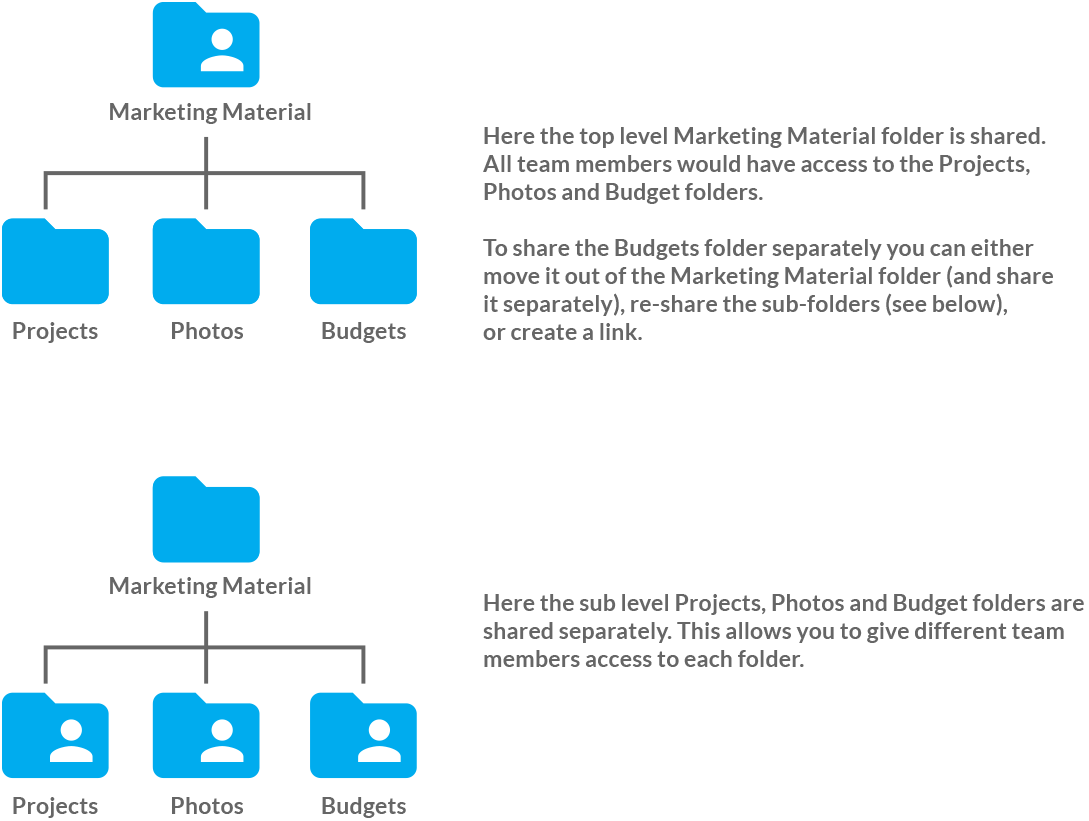
With team shared folders you can only share a top-level folder or its sub-folders, but not both. As such, a flat folder structure is recommended to ensure that access is clearly defined and easily understood by all users.
If you do need to share a folder inside an existing shared folder you can either:
- Move the folder out of the shared folder, and share it separately.
- Or, unshare the top-level folder, and then re-share the sub-folders separately.
- Or, create a link to the sub-folder.
Change the owner of a shared folder
The person that creates the shared folder automatically becomes the owner (administrator). Only the owner can add or remove members, change permissions, change owner, or unshare the folder.
To determine the owner of a shared folder:
- Sign in to the web panel.
- Click Shares from the left navigation bar.
- The owner of each share folder is displayed under the Owner column.
Give another share member invite permissions:
If you want to give another share member the ability to add members, you can do so by giving them invite permissions. You will remain the owner, but this allows other users to manage access to the folder.
To change the owner of a shared folder:
- Sign in to the web panel.
- Click Shares from the left navigation bar.
- Click the (ellipsis) icon beside the shared folder you want to manage.
- Select Manage share folder.
- Click the Change owner button.
- Select a new owner from the dropdown. If the new owner is not already a member of the share folder you will need to invite them first.
- Click Transfer. Proceed with caution as this action cannot be undone.